Google Location Asset Requirements: What You Need to Know
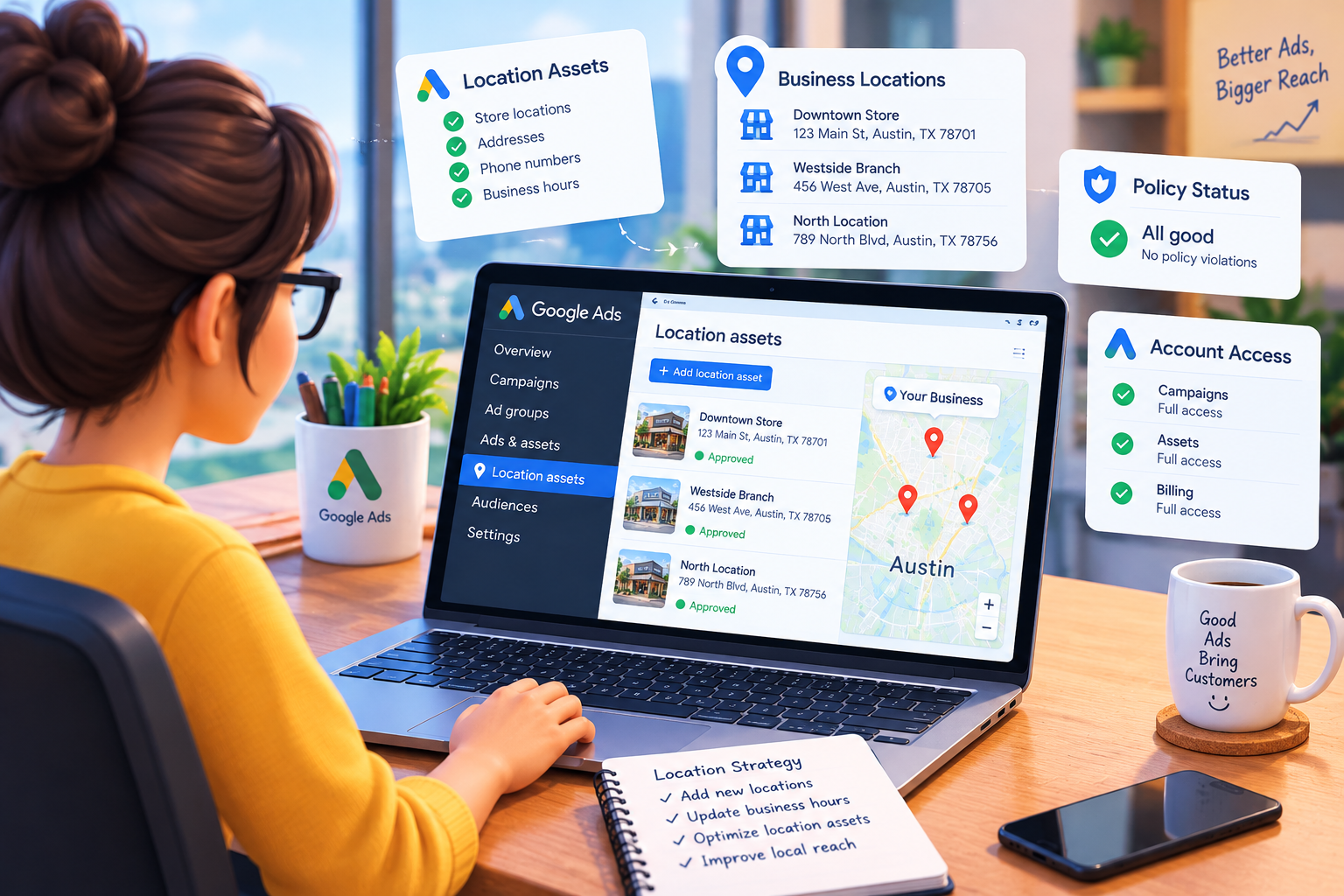
Google Ads location assets help businesses link online ads to physical locations. They offer helpful information including business addresses, phone numbers, hours of operation and directions.
However, adding a location to your campaign doesn’t ensure approval or visibility. Advertisers must provide truthful information, meet Google’s eligibility and comply with its advertising policies. Knowing Google location asset requirements can help you avoid disapprovals and improve your local advertising campaigns.
What Are Google Location Assets?
Location assets connect Google Ads campaigns to the right business locations. They help potential customers discover nearby stores, contact businesses or get directions directly from qualifying ads.
Google supports two main types
- Our locations: For businesses advertising their own physical locations.
- Affiliate locations: For businesses selling products through other retailers.
These Google location assets may appear on Google Search, Google Maps, YouTube and other eligible placements. Their visibility is determined by campaign settings, available inventory and Google’s advertising systems.
Google Location Asset Requirements You Must Meet
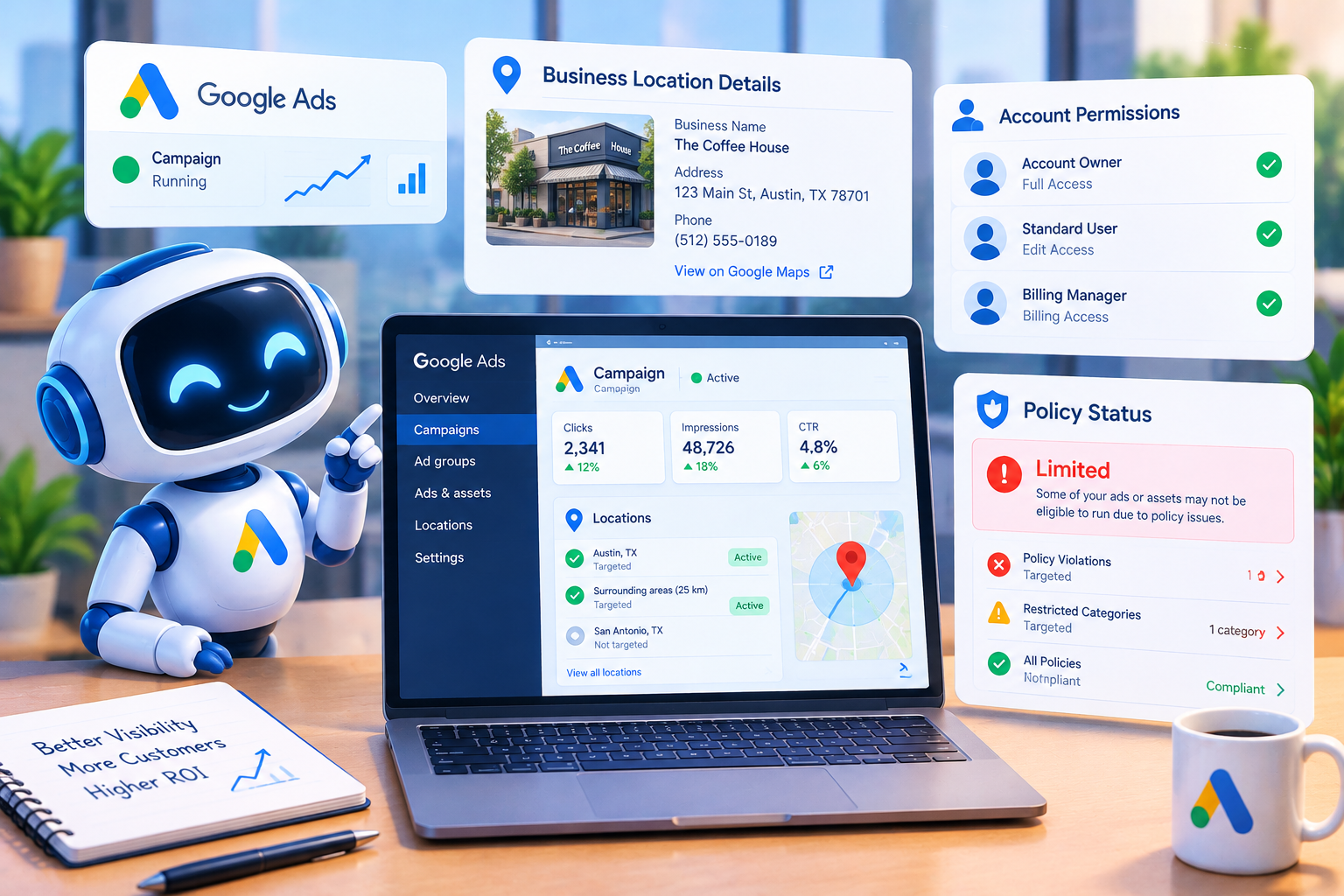
Advertisers must comply with Google’s general advertising policy, plus location-specific eligibility requirements. Meeting these Google location asset requirements minimizes the risk of rejections and account problems.
1. Use a Genuine Business Location
The location must be a real place, identifiable and tied to the business being advertised. Google may reject places that are permanently closed or that can’t be verified.
Ensure that the products or services advertised are available at the location you choose. Using an unrelated address to attract customers can create eligibility problems.
2. Obtain the Necessary Permissions
Google Ads must be authorized properly to use the business’s location information. Make sure agencies working on client campaigns have the right account access.
Before linking any accounts, verify that the business owner has provided the required permissions. Validate existing connections instead of assuming if previously established access is still valid.
3. Follow Google’s Advertising Policies
Google location asset requirements must comply with Google’s advertising policies, including prohibitions on prohibited products, misleading claims and inappropriate content.
Business names and other information must also comply with editorial standards. Disapproval can be based on misleading details, unnecessary symbols or unusual formatting.
Always check the specific policy notification if an asset is rejected. It can help you to determine if the issue is with the listing, location eligibility or ad.
Choosing the Right Location Data Source
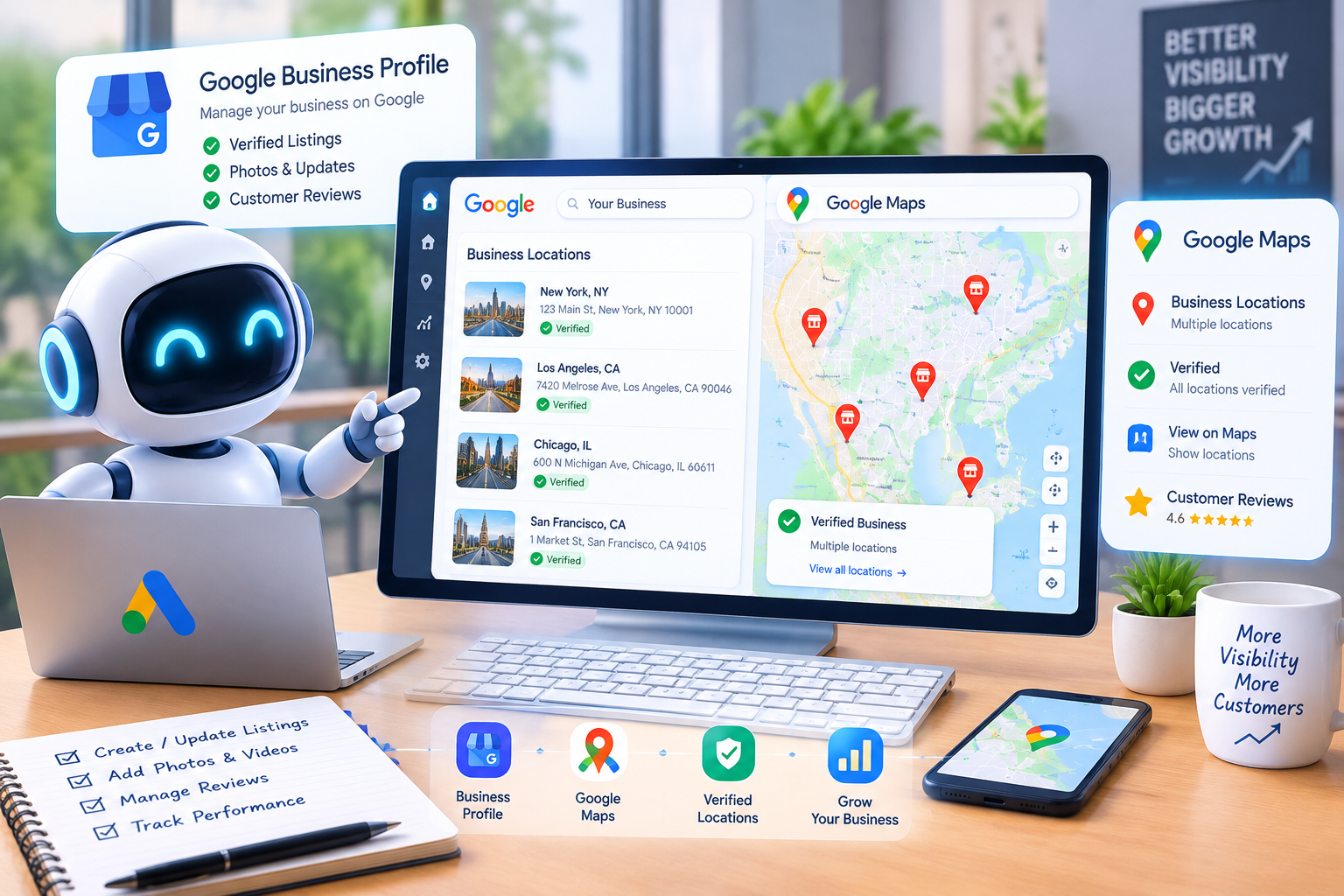
Another critical component of meeting Google Location Asset Requirements is selecting the correct source. Your options will depend on whether you own the advertised locations.
Google Business Profile
Google Business Profile is a good choice for businesses that advertise their own stores or service locations. Link the relevant profile to Google Ads from an account with the necessary permissions. If the profile is managed by someone else, ask them for access before trying to connect it.
Google Maps
Google Maps is an alternative when other supported location sources aren’t suitable. This choice enables advertisers to choose eligible Maps locations from Google Ads. All your business’s chosen locations are part of it. Adding an unrelated business can cause disapproval.
Supported Chains & Partner Locations
Businesses that sell products through other retailers may use supported chain locations or Global Location Groups if available. Select the source that matches your real business connection with each location. The wrong type of Google location asset can cause eligibility problems.
Managing location assets for several stores or client accounts? One Design Marketing Technologies can help with Google Ads setup, PPC services and local SEO.
Setting Up Location Assets in Google Ads
Once your business info & permissions are set up, do the following:
- Open Location Manager: Sign in to Google Ads and find Location Manager under the Tools menu.
- Choose a location source: Select Google Business Profile, a supported chain or another eligible option.
- Connect your account: Select the relevant profile or request access if necessary.
- Choose locations: Apply business name or location label filters when needed.
- Configure campaigns: Decide whether campaigns should use all linked locations or selected groups.
- Check asset status: Review warnings, missing locations and disapprovals.
Available options may vary by account and location source. Allow time for information to sync before troubleshooting newly connected locations.
Common Google Location Asset Problems & Fixes
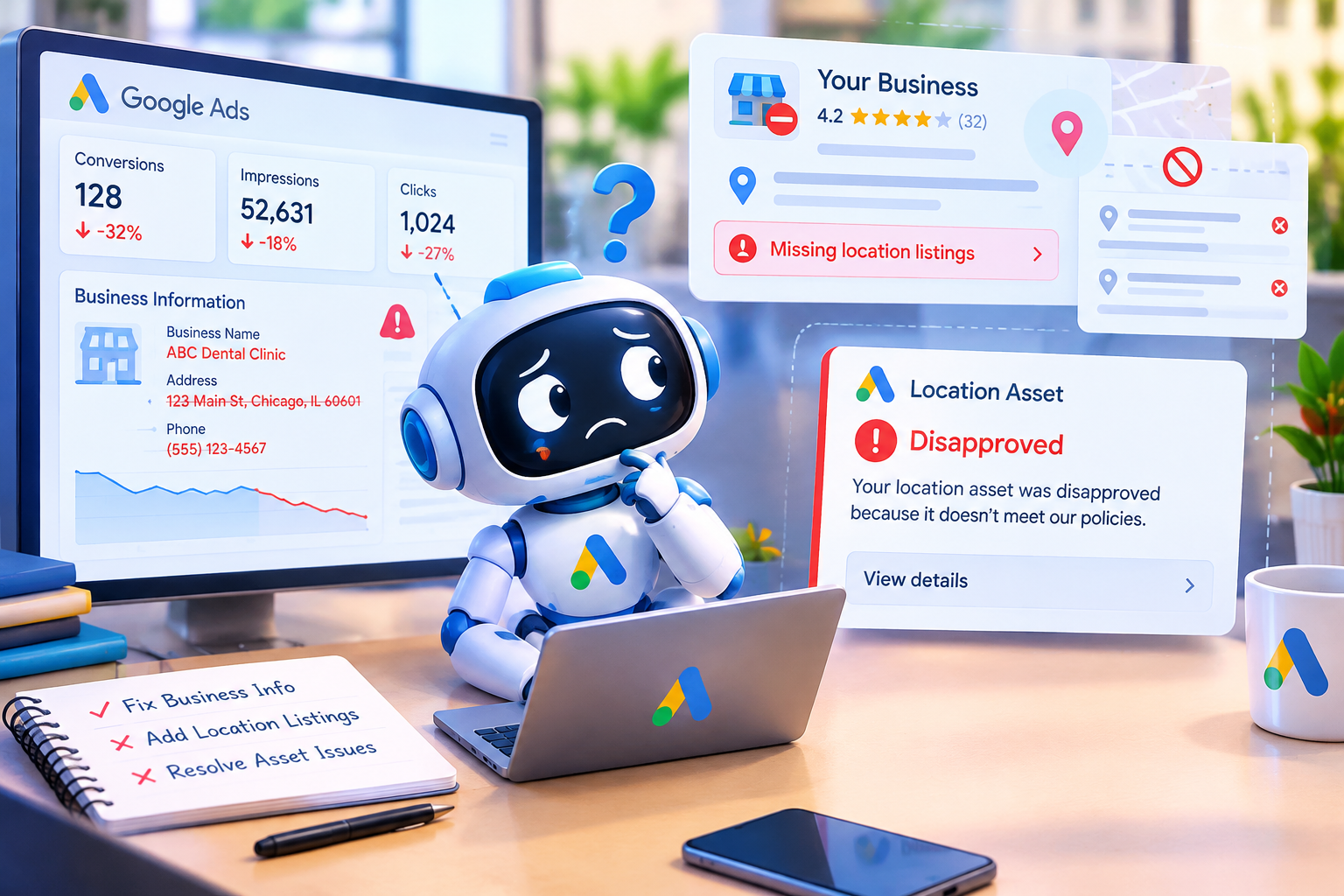
Even the best-run campaigns can run into Google location asset requirements-related problems. Knowing the cause helps you solve problems without making unnecessary account changes.
Wrong Business Information
If you find an incorrect address, phone number, business name or operating hour you should update the original listing in Google Business Profile or Google Maps. Google Ads uses information from these sources. Thus, changing campaign settings alone may not solve the problem.
Missing Locations After Linking
Make sure the location is active and linked to the right profile. Check to see if location labels or filters are excluding it from your campaign. Updates can take a while to appear. But waiting won’t fix a policy disapproval, which calls for a separate correction or review.
Business Name Disapproval
Look for additional punctuation, odd capitalization or details that don’t reflect the brand. Edit the original Business Profile as required. If the name is correct but has been wrongly flagged, ask for a review instead of changing correct information.
Location Assets Not Appearing
Approval does not guarantee that location assets will display with all advertisements. Google takes into account factors such as Ad Rank, expected performance, available space and other eligible assets.
Not sure why your locations keep getting disapproved? The team at One Design Marketing Technologies audits listings, permissions and campaign settings.
Read more: PPC Monitoring: What to Check Between Audits
Best Practices for Managing Location Assets
Meeting Google Location Asset Requirements is only the first step. Regular maintenance helps businesses keep their information accurate and campaigns properly configured.
- Audit business information: Check addresses, phone numbers, operating hours and listing status regularly.
- Review permissions: Ensure the right people can access connected Business Profiles.
- Check location filters: Confirm campaigns target the intended stores and service areas.
- Monitor disapprovals: Address policy notifications instead of repeatedly reconnecting accounts.
- Measure performance: Track calls, direction requests and eligible store visits where reporting is available.
Businesses managing multiple locations should assign clear responsibility for listing updates and account permissions. This reduces confusion when information changes or campaign access is transferred.
Final Thoughts
Google Location Asset Requirements help ensure that advertising location information is accurate, authorized and relevant to customers. Choosing the right data source, maintaining reliable listings and reviewing campaign settings can prevent common issues.
Remember that approval and visibility are different. Even eligible assets may not appear in every auction. Regular monitoring helps advertisers resolve problems and get more value from their Google Ads campaigns.
Need expert help with Google Ads and local visibility? Talk to One Design Marketing Technologies – Contact Us or Schedule a Meeting.